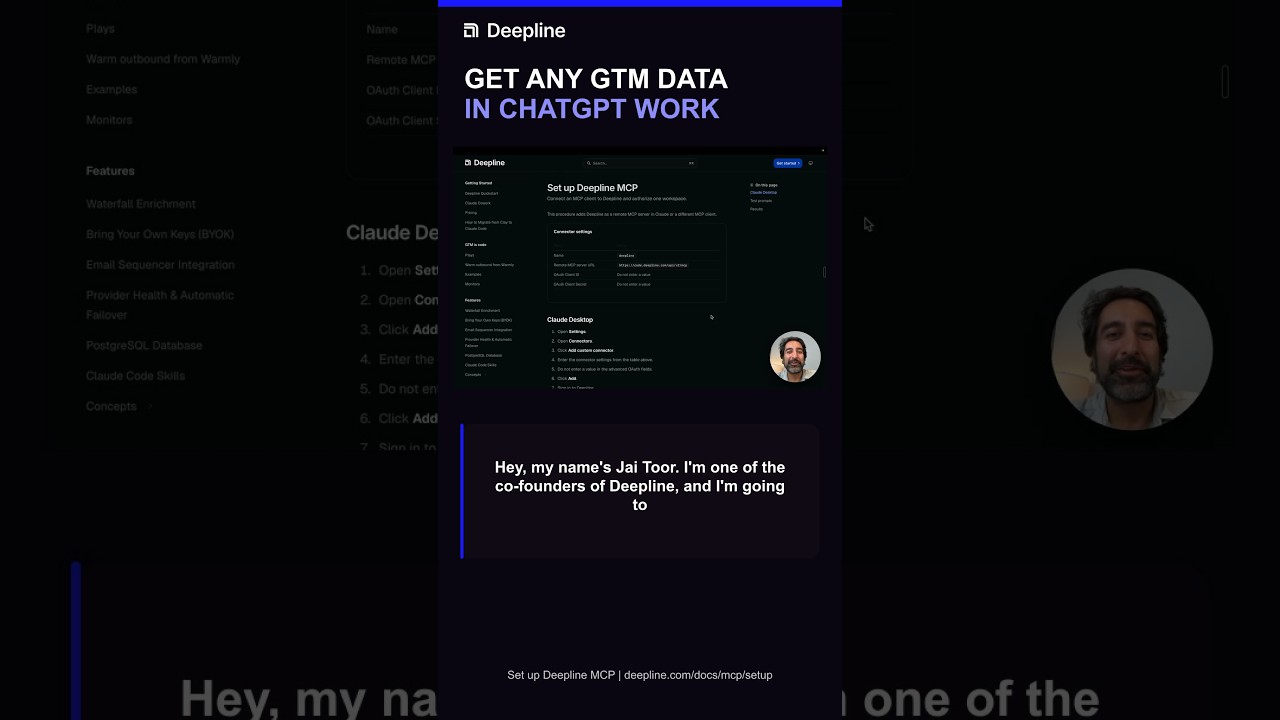
Video not loading in LinkedIn or your in-app browser? Watch it on YouTube.
Deepline MCP gives ChatGPT Work access to the tools and saved Plays in one approved Deepline workspace. The video shows setup, OAuth authorization, a contact lookup, provider provenance, a HubSpot update, and a saved Play.
Start with the MCP setup guide. It contains the current server URL, connector fields, workspace warning, and test prompts.
What the video proves
Jai connects Deepline MCP, chooses a workspace, and asks for his work email. The result returns in 41 seconds.
The next request finds a mobile number and adds it to HubSpot. A follow-up asks which source returned the number. Deepline names Wiza and shows the validation result.
The final requests pull Jai's LinkedIn profile and call a saved Play. A Play is a reusable workflow stored in the selected Deepline workspace. The video uses org chart design and buying committee creation as examples.
Prompts from the walkthrough
Use the first prompt to verify the connection:
Use Deepline MCP to get Jai Toor's work email.
Test a CRM action only after you confirm the selected workspace and HubSpot connection:
Use Deepline MCP to find the mobile contact information for jai@deepline.com and add it to HubSpot.
Ask for provenance before you trust the value:
Which source did you use? Show the validation result.
Test person enrichment and follow-up reasoning:
Use Deepline MCP to pull the full LinkedIn profile for Jai Toor. What kind of work did he do at Uber?
The workspace is the boundary
The workspace you approve determines which tools, Plays, integrations, and database data the MCP client can use. Check the workspace name before you approve access.
If you connected the wrong workspace, remove the connector and authorize it again with the intended one. Do not test CRM writes until the connection points to the right workspace.
Move from one contact to a file
The walkthrough uses one contact because the result is easy to inspect. The same interface can accept a list or CSV.
Start with a small sample. Check identity, source, validation, and the target system before you process the full file. For a file-first workflow, use the CSV email enrichment guide.
Choose the right interface
Use MCP for ChatGPT Work, Claude Desktop, and other clients that speak MCP. Use the CLI when the agent has a shell and the workflow needs local files or shell composition. Use the SDK when you are writing an application.
Read CLI vs MCP vs SDK for the full decision. If you use Claude Code, read the CLAUDE.md, Skills, and MCP guide.
Frequently asked questions
1How do I connect Deepline MCP to ChatGPT Work?+
Add a custom MCP connector with https://code.deepline.com/api/v2/mcp as the remote server URL. Leave the OAuth client ID and secret empty. Sign in to Deepline, choose one workspace, and approve access.
2What can ChatGPT Work use after authorization?+
The client can use the Deepline tools, saved Plays, and permitted database data in the workspace you approved. The workspace boundary controls what the connection can access.
3Can Deepline MCP process a list or CSV in ChatGPT Work?+
Yes. The video demonstrates one contact and explains that the same interface can accept a list or CSV. Start with a small sample and inspect the result before running the full file.
4Can Deepline MCP update HubSpot?+
Yes when the selected Deepline workspace has the required HubSpot connection and permissions. The video finds a mobile number, validates it, names Wiza as the source, and adds the contact data to HubSpot.