

Connect with a system user token
Deepline connects to Meta with a system user token that you generate in your own Meta Business portfolio. It takes about five minutes. The token:- belongs to your business, not to a person, so it keeps working when someone leaves or changes their Facebook password;
- never expires if you choose Never in step 4;
- carries only
ads_managementandads_read.
Before you start
You need:- Admin access to the Meta Business portfolio that owns the ad account. Open Business settings and check that you can see Users → System users.
- The ad account you want Deepline to create audiences in. It must belong to, or be shared with, that Business portfolio. Its ID appears in Ads Manager next to the account name.
- A Deepline workspace admin to paste the token.
1
Create a Business app
Open Create an app in
Meta for Developers. If Meta shows “There’s a new way to create apps with
Meta”, select Create app to continue.
-
App details. Enter an app name such as
Deepline Audiencesand a contact email your team reads. Select Next.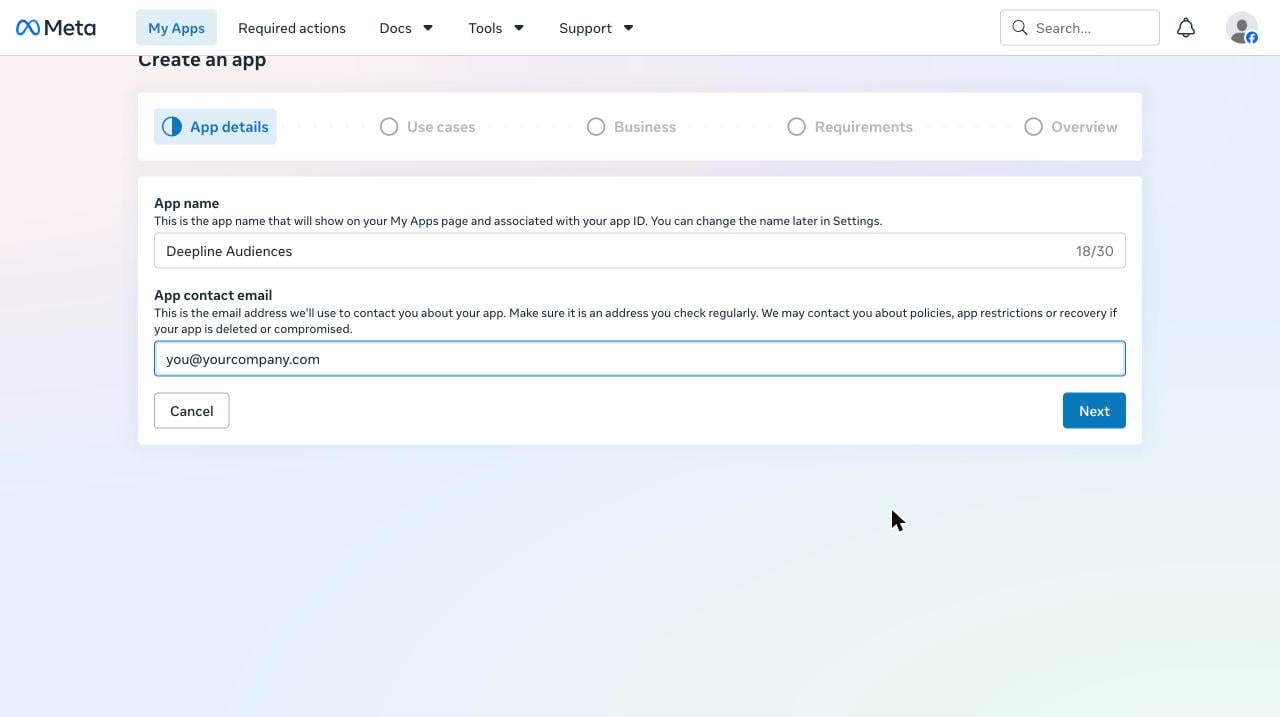
-
Use cases. Check Create & manage ads with Marketing API, then
select Next. This use case is what makes
ads_managementandads_readavailable to the token in step 4.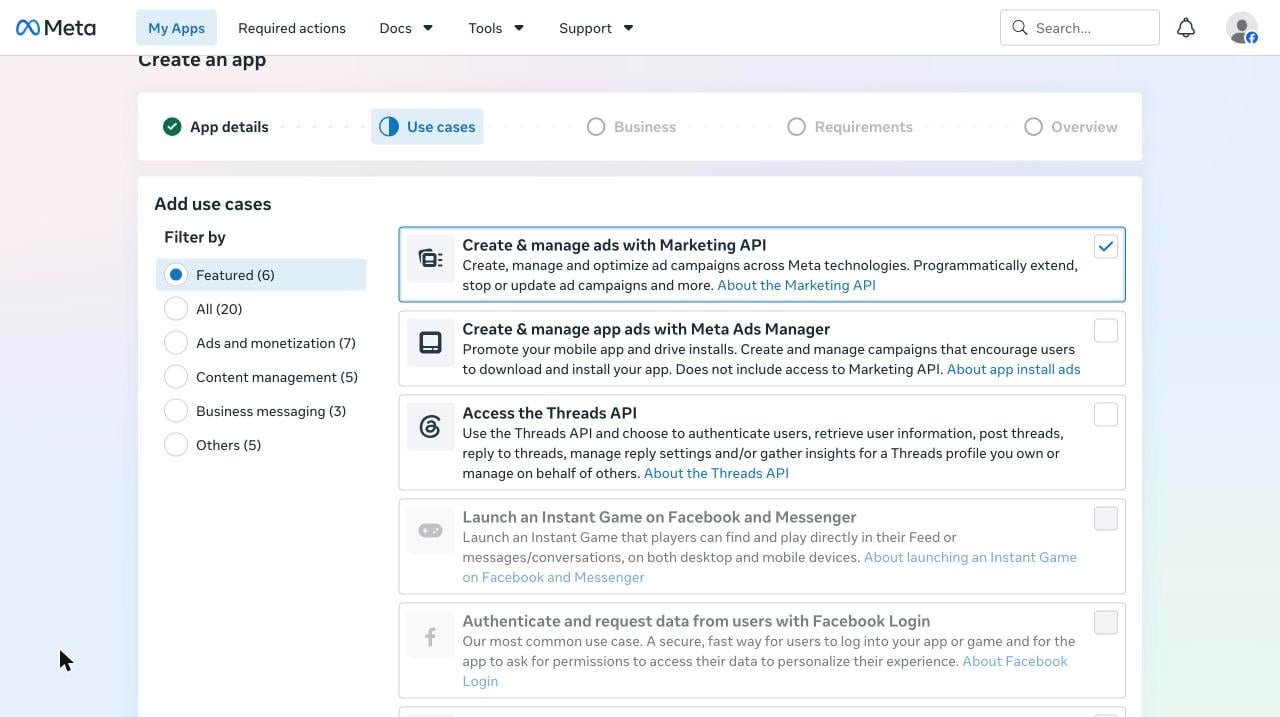
-
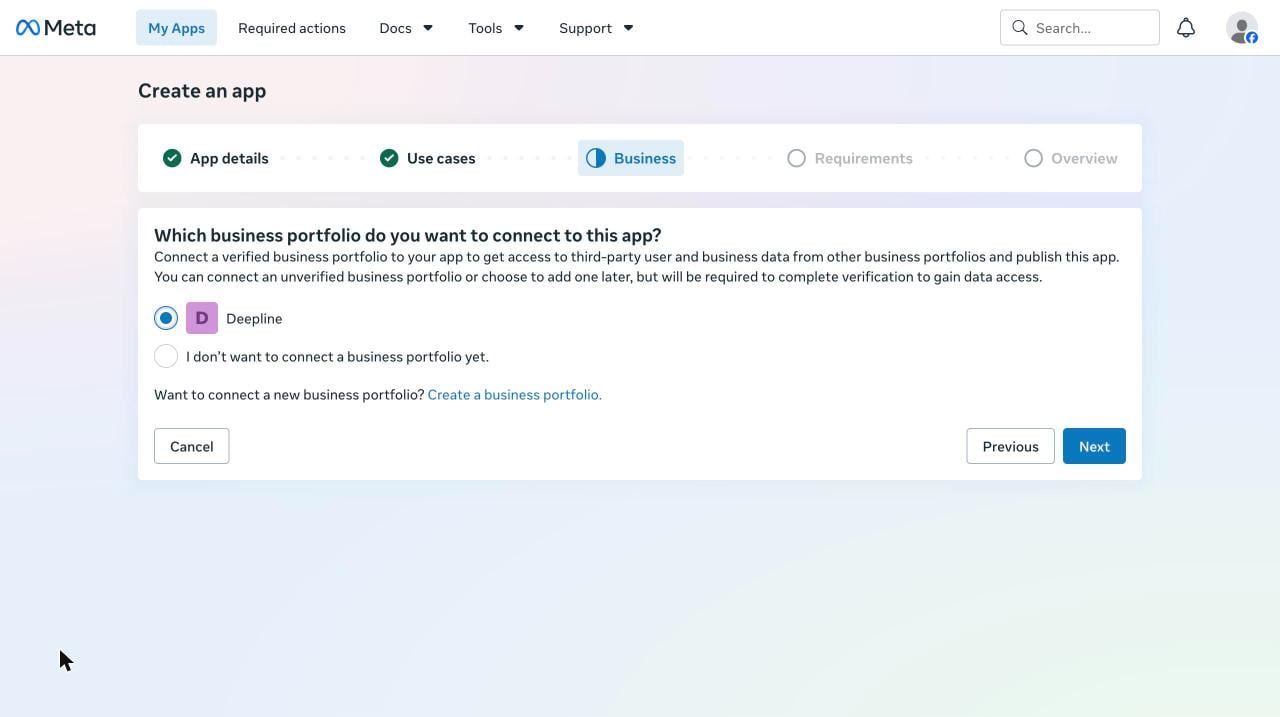
Business. Select the Business portfolio that owns your ad account,
then select Next. An unverified portfolio works.
-
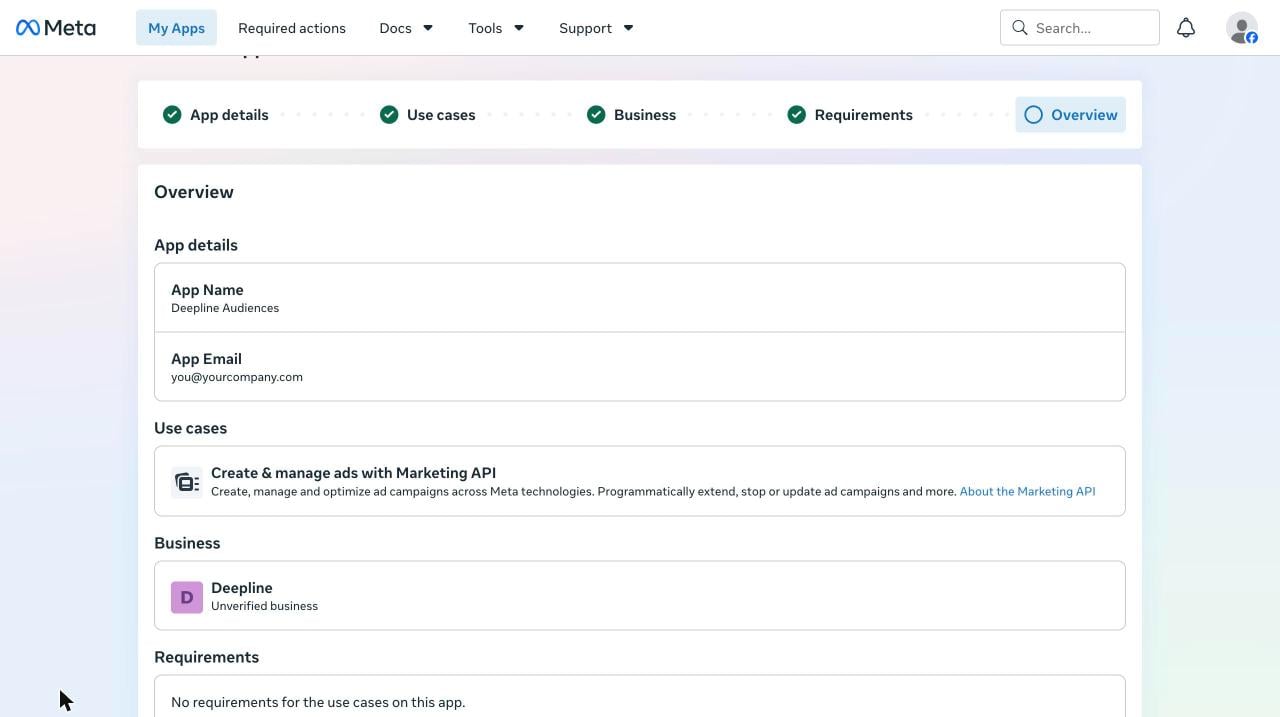
Requirements and Overview. Meta lists no requirements for this use
case. Check the overview and select Create app, which accepts Meta’s
Platform Terms for your business. Meta may ask for your password.
2
Add a system user
In Business settings, open
Users → System users
and select Add. If you manage more than one Business portfolio, Meta
first asks you to pick one: choose the portfolio that owns your ad
account. Name the system user 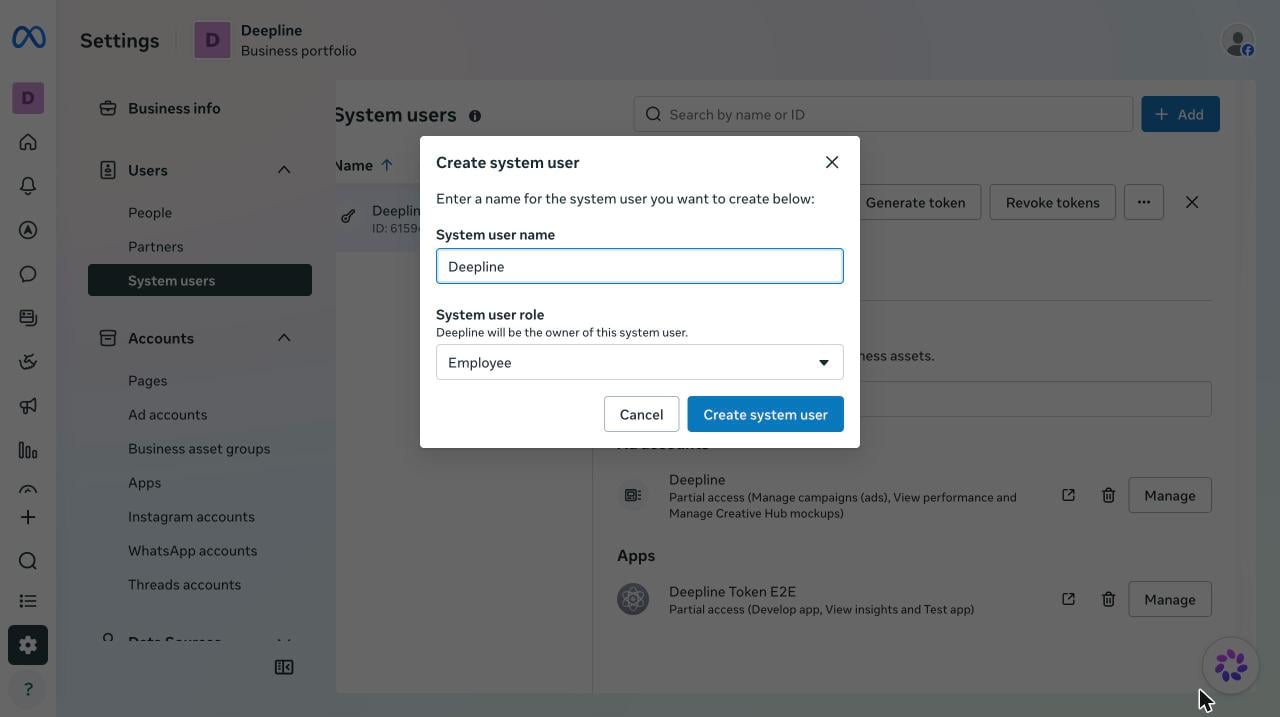
Deepline, keep the role Employee, and
select Create system user.3
Give the system user the ad account and the app
Select the new system user, then Assign assets.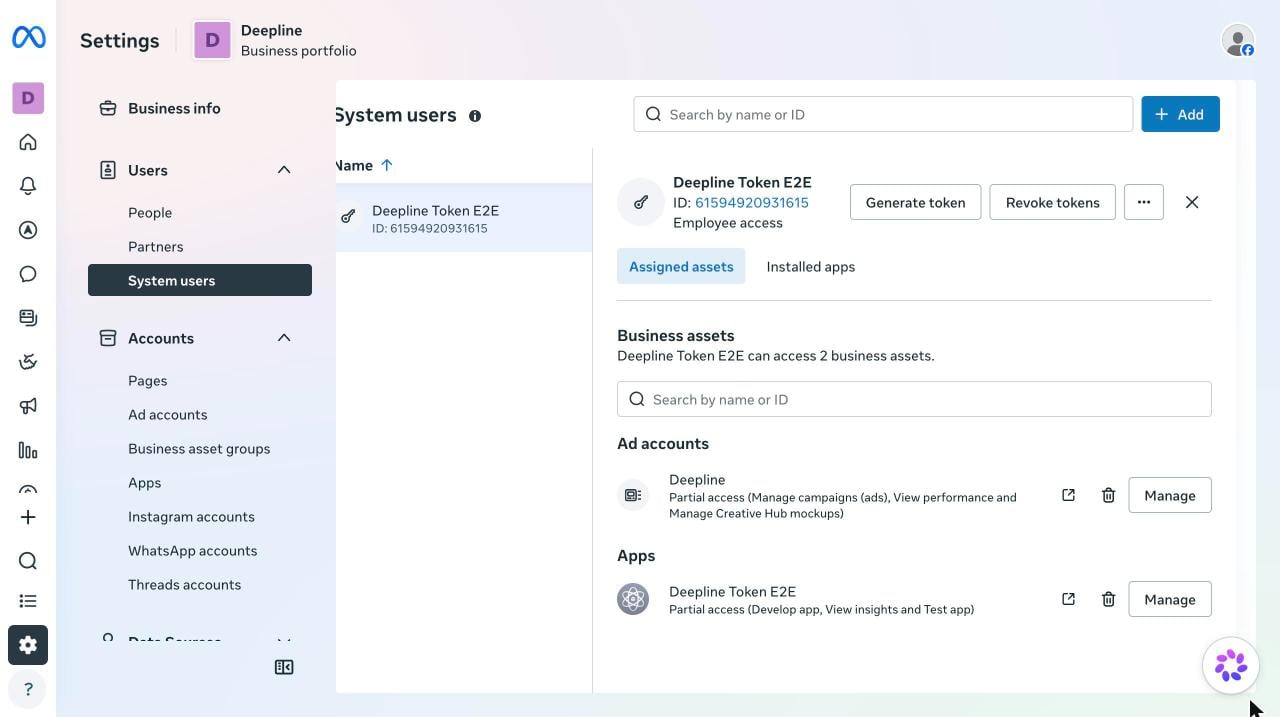
-
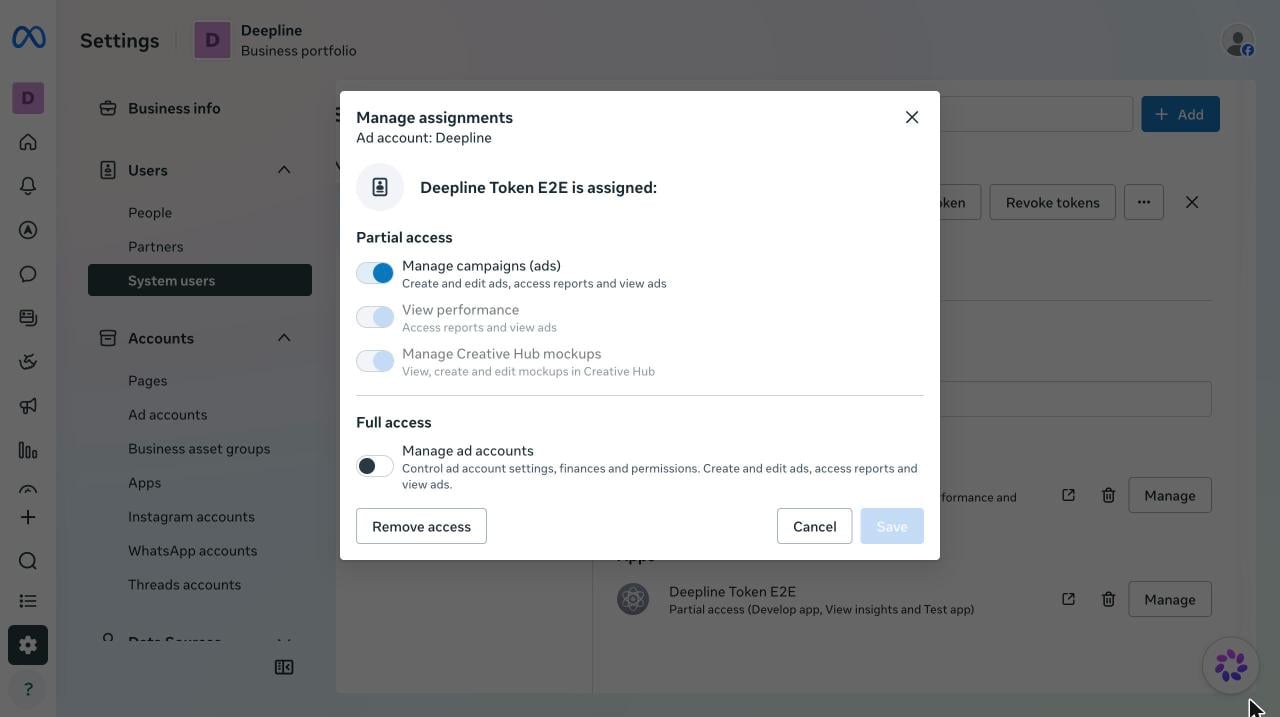
Ad accounts: select your ad account and turn on
Manage campaigns (ads) under Partial access. Meta turns on View
performance and Manage Creative Hub mockups with it.
-
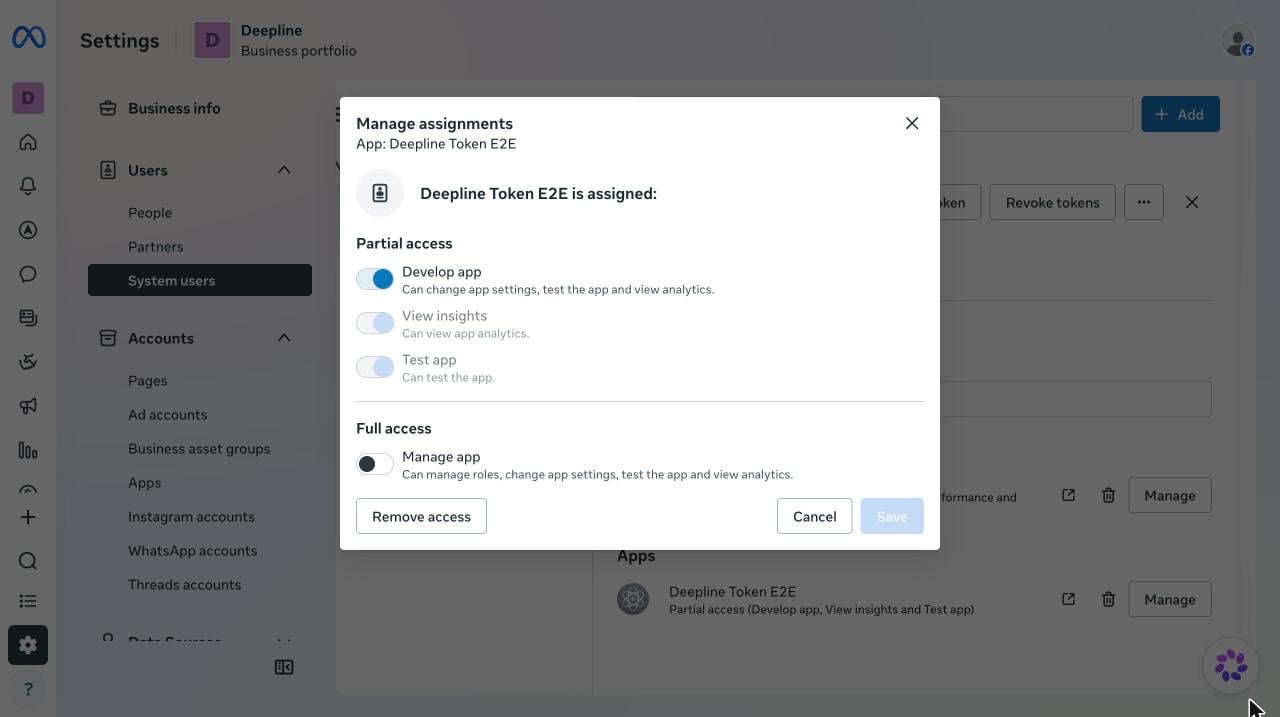
Apps: select the app from step 1 and turn on Develop app. Meta
turns on View insights and Test app with it.
4
Generate the token
On the system user, select Generate token.
-
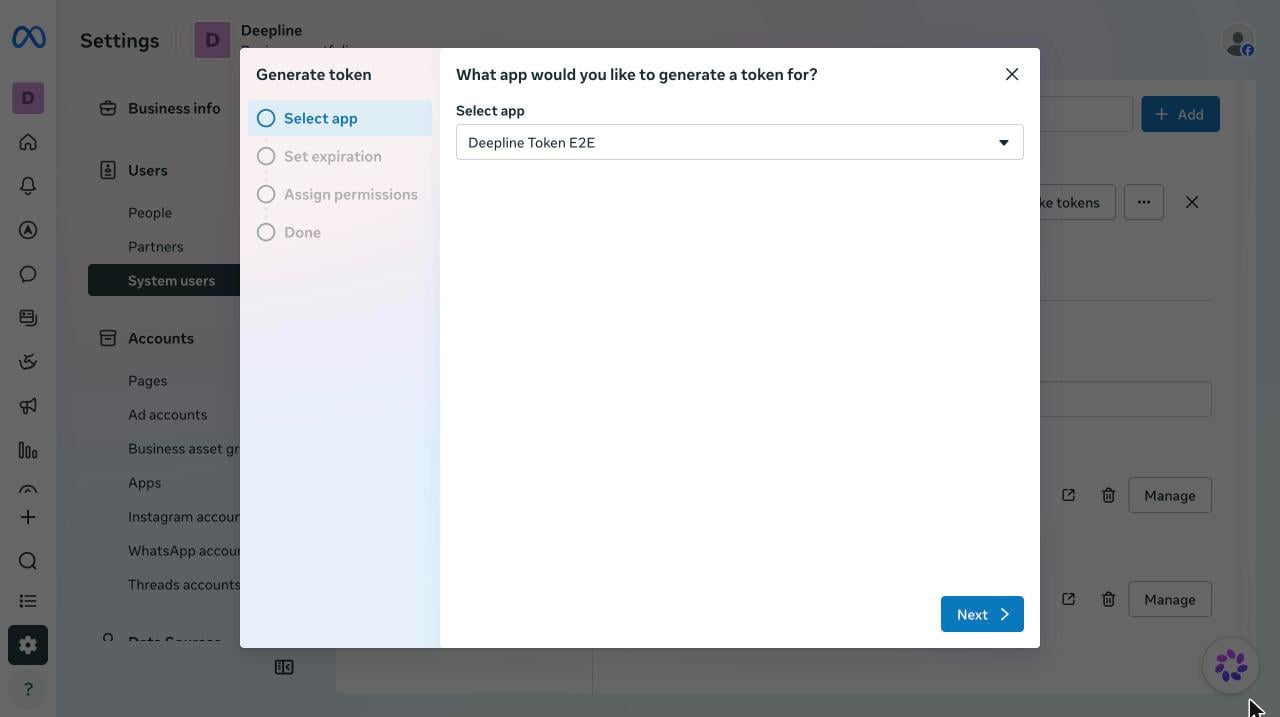
Select app: pick the app from step 1, then Next.
-
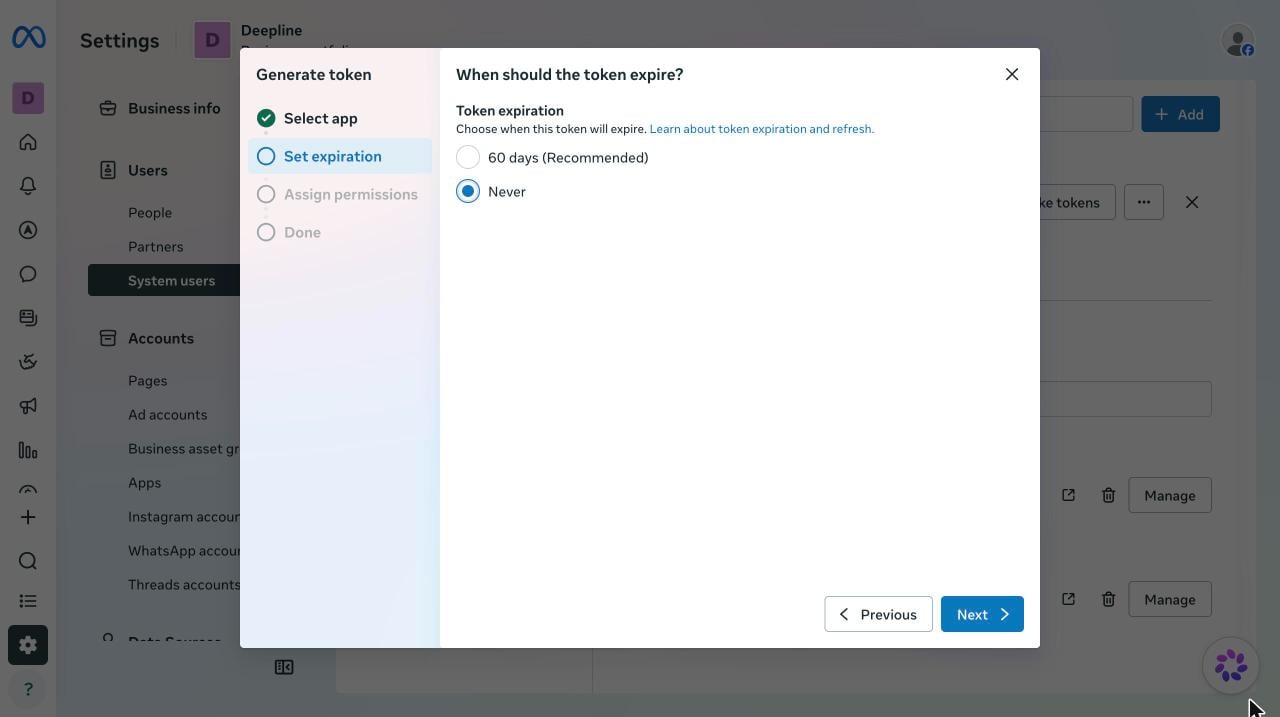
Set expiration: choose Never, then Next. Meta preselects
“60 days (Recommended)”. Deepline stores the token as permanent, so a
60-day token stops working without warning when it expires.
-
Assign permissions: type
ads_in the search box and check ads_read and ads_management. Leave everything else unchecked. Deepline does not usebusiness_management,pages_manage_ads, or any other permission.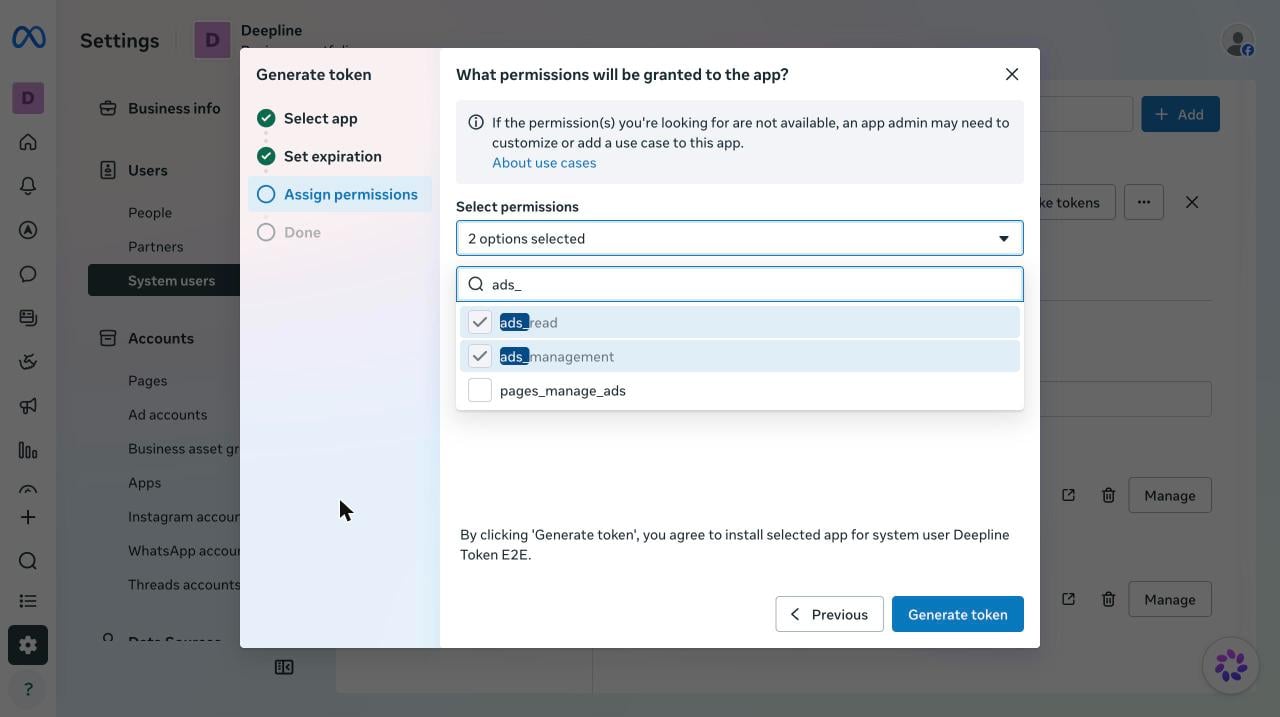
- Select Generate token, then copy the token. Meta shows it only once. Store it only in Deepline; don’t paste it into chat, email or tickets.
5
Accept the Custom Audience terms
Meta rejects customer-list audiences until a person in your business
accepts its Custom Audience terms for that ad account. Open this link with
your ad account ID and select Accept: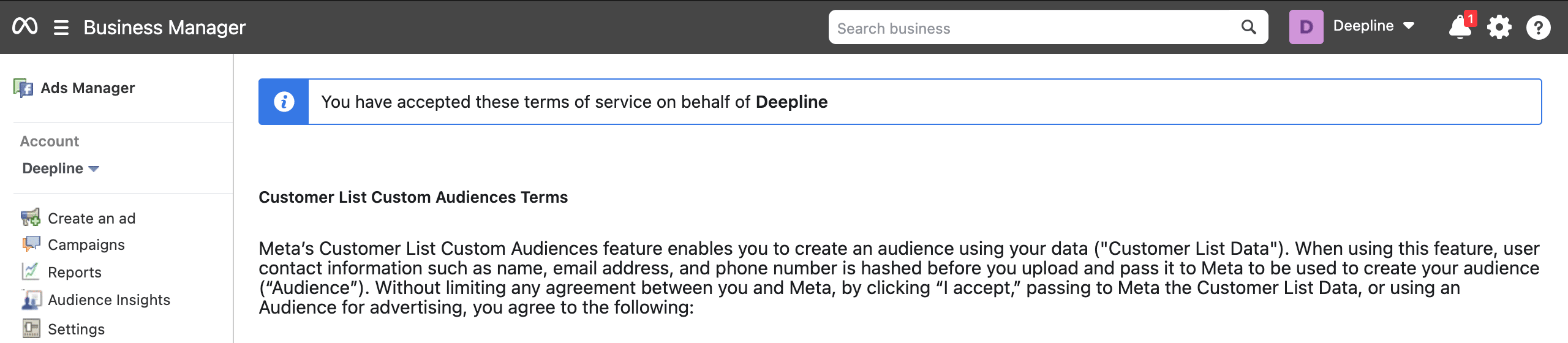
https://business.facebook.com/ads/manage/customaudiences/tos/?act=<ad account ID>When they’re accepted, the page says “You have accepted these terms of
service on behalf of” your business:6
Paste the token into Deepline
In Deepline, open Integrations, find Meta audiences under Ad
Platform, and select Connect.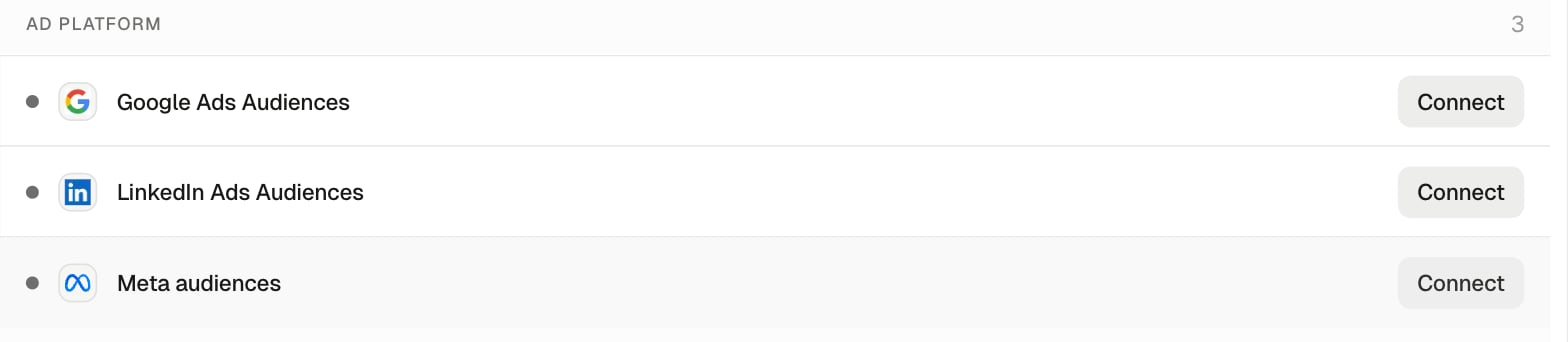
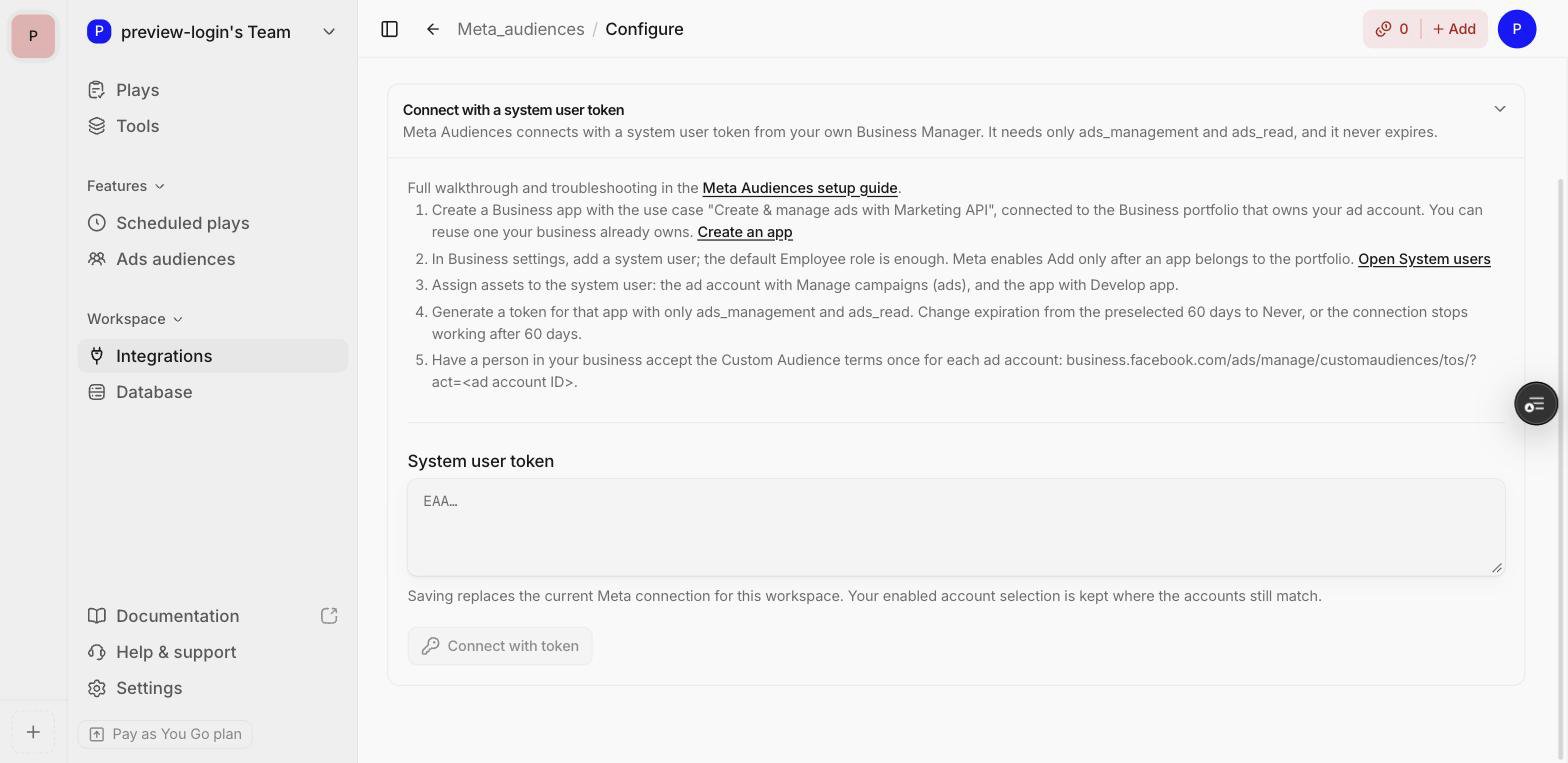
What Deepline checks when you connect
When you select Connect with token, Deepline:- lists every ad account the token can reach;
- confirms it can read Custom Audiences in at least one account, starting with the default. If none can, it saves nothing and keeps any existing connection;
- checks whether the Custom Audience terms are accepted for each account, and lists any account still missing them with an Accept terms link;
- saves the token. It is stored encrypted and never returned by the API.
ad_account_id use the
default.
Agents can read each account’s terms state from
GET /api/v2/integrations/meta_audiences/accounts, called with an org admin’s
session or an API key owned by an org admin. The
customAudienceTermsAccepted field is true, false, or null when Meta
didn’t report it. The endpoint returns the state from the last discovery;
Refresh (or POST to the same endpoint) discovers again.
Rotate or revoke the token
- Rotate: generate a new token for the same system user (step 4) and paste it on the same Deepline page. Your enabled accounts and default carry over where the accounts still match.
- Revoke: in System users, select the system user and Revoke tokens. Meta rejects the token immediately, and Deepline reports the error on its next Meta call. Disconnect it under Integrations too.
- Add an ad account: assign it to the system user (step 3), accept its terms (step 5), then select Refresh on the Deepline Meta Audiences page. The existing token picks up newly assigned accounts.
How this differs from other tools
Deepline lists ad accounts through the token’s own accounts, so it doesn’t need
business_management. If you reuse a token that has it, Deepline ignores it.
Meta Login for Business is not offered for new connections while Deepline’s
Meta App Review is pending. Existing Login for Business connections keep
working. To switch one to a token, paste a token on the same page; your
enabled accounts carry over where they still match.
Connection troubleshooting
Live actions and schema
Execute these IDs through the sharedPOST /api/v2/integrations/{toolId}/execute contract.
The table lists payload fields. Substitute an Action ID from it into
GET /api/v2/integrations/{toolId}/get to inspect the live schema.
Each
rows entry can carry a supported raw or SHA-256 identifier. Deepline
hashes supported raw identifiers locally before upload and reports invalid rows
separately.
Meta-specific safeguards
- Create an audience once and store
data.audience.idfrom the create result. Use that ID in later status, sync, and delete requests. - Use
mode: "replace"for a full snapshot andmode: "append"for an incremental addition. Send one complete member list per sync rather than splitting it into concurrent uploads. - Read
operation_status,delivery_status, and theapproximate_count_lower_bound/approximate_count_upper_boundpair. Meta reports a range; a null count shortly after sync is not by itself a failure. - If
operation_statusshows a replacement upload is still processing, pollmeta_audiences_get_audience_statusuntil it settles before resending the complete list in one call. Do not continue a partial upload with append. - If
delivery_statusreports poor matching, improve the source list before treating the upload as successful. - Deleting an audience is irreversible. Read the audience and account IDs back before calling the delete action.