> ## Documentation Index
> Fetch the complete documentation index at: https://deepline.com/docs/llms.txt
> Use this file to discover all available pages before exploring further.
# Quick Start
> Install the Deepline CLI and find a verified work email using waterfall enrichment across 79 providers — in under a minute.
# Find a verified work email in under a minute
Deepline is a CLI and API for GTM data enrichment. It runs waterfall searches across 79 providers (Apollo, Hunter, Prospeo, etc.) so you get more results than any single tool, and only pay for the provider that finds a hit.
## Watch the setup
## 1. Install
### Prerequisites
* Node.js 20+
* Python 3.10+
* npm
* [Claude Code](https://claude.ai/download) or any AI coding agent
### Install CLI
This downloads the `deepline` binary and adds it to your PATH:
```bash macOS/Linux theme={null}
curl -s "https://code.deepline.com/api/v2/cli/install" | bash
```
The install script handles authentication automatically — no extra steps needed.
Install Deepline as a Claude Cowork plugin instead of running the shell installer.
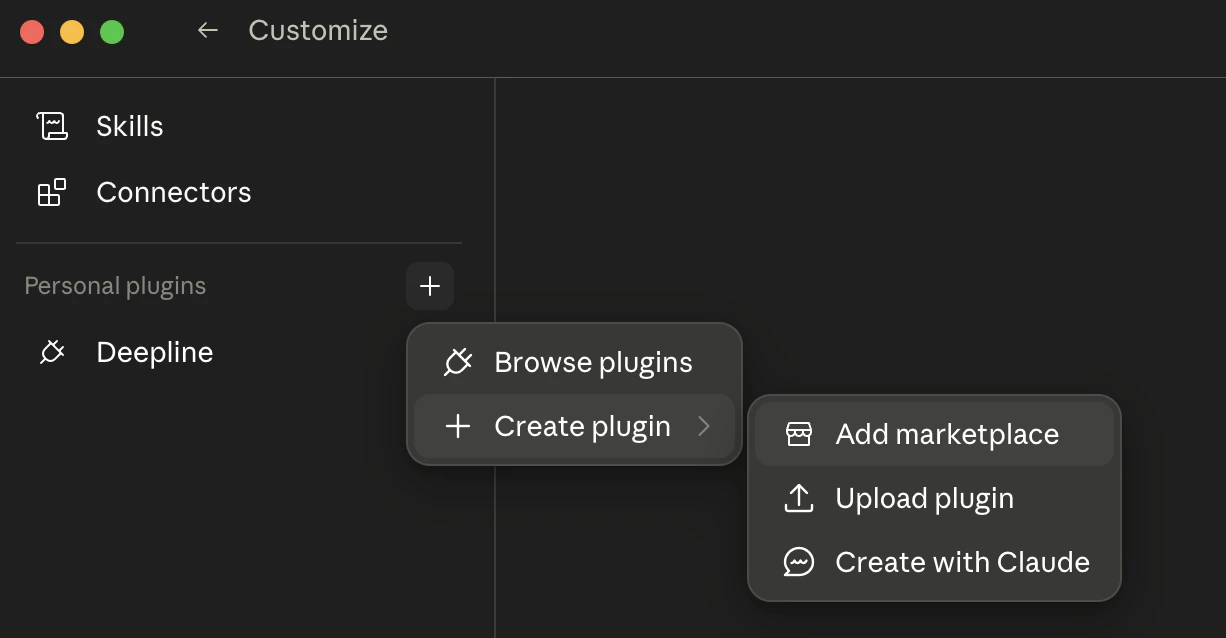
1. Open Claude Desktop and switch to **Cowork**.
2. Open **Customize** in the left sidebar.
3. Click the **+** next to **Personal plugins**.
4. Open **Create plugin**, then choose **Add marketplace**.
5. Add the Deepline plugin marketplace:
```text theme={null}
https://github.com/getaero-io/deepline-plugins
```
6. Install the `deepline` plugin.
7. Enable internet access for **all domains** in the Cowork session settings.
8. Start a Cowork session and run:
```text theme={null}
/deepline-quickstart
```
The first Deepline command may install the CLI inside the Cowork sandbox. That is expected.
## 2. Use the skill
The Deepline skill auto-syncs when you install the CLI. In Claude Code, type:
```
/deepline-gtm Find a verified work email for Jane Smith at Stripe
```
The `/deepline-gtm` prefix tells Claude Code to use the Deepline skill, which knows all 79 providers, waterfall logic, and cost optimization. Describe what you want in plain English after the prefix.
## 3. Run your first recipe
The install script will automatically start a guided wizard to pick and run your first recipe. You can also come back to it any time with `deepline quickstart`.
Or type directly in Claude Code:
```
/deepline-gtm Find the work email for a Chief Marketing Officer in NYC
```
That's it. Deepline runs a waterfall across multiple providers and returns a verified work email.
```bash theme={null}
deepline tools execute company_to_contact_by_role_waterfall \
--payload '{"company_name":"Acme","domain":"acme.com","roles":["Chief Marketing Officer"]}'
```
The waterfall tries multiple providers and stops at the first valid hit. You only pay for the one that finds the email. This gets **20-40% more emails** than any single provider ([Instantly](https://instantly.ai/blog/waterfall-enrichment/)).
## What just happened
1. Deepline searched for a CMO in NYC across prospecting providers
2. It ran a **waterfall** across email providers
3. The first provider to return a valid, verified email wins
4. You paid for one successful lookup — typically 0.3-0.4 credits
## Scale it up
Got a list? Just ask:
```
/deepline-gtm I have a CSV with company names and domains. Find work emails for the VP of Sales at each one.
```
Deepline reads your file, picks the right waterfall, and enriches every row.
**Pilot mode:** Add "just test on the first 2 rows" to any prompt to review before processing the full file.
## Next steps
How tools, payloads, and waterfall execution work under the hood.
Batch-enrich CSVs locally with row-level provider routing.
Step-by-step: find verified emails for a list of contacts.
Per-provider guides, schemas, and sample outputs.
Pick the right workflow based on what data you already have.
Open-source GTM workflow templates on GitHub.
***
Reach us: `/deepline-feedback` in Claude Code, or [team@deepline.com](mailto:team@deepline.com).
 5. Add the Deepline plugin marketplace:
```text theme={null}
https://github.com/getaero-io/deepline-plugins
```
6. Install the `deepline` plugin.
7. Enable internet access for **all domains** in the Cowork session settings.
8. Start a Cowork session and run:
```text theme={null}
/deepline-quickstart
```
The first Deepline command may install the CLI inside the Cowork sandbox. That is expected.
5. Add the Deepline plugin marketplace:
```text theme={null}
https://github.com/getaero-io/deepline-plugins
```
6. Install the `deepline` plugin.
7. Enable internet access for **all domains** in the Cowork session settings.
8. Start a Cowork session and run:
```text theme={null}
/deepline-quickstart
```
The first Deepline command may install the CLI inside the Cowork sandbox. That is expected.